
Closet guides
How to Digitize Your Wardrobe: Start With the Clothes You Wear Most
By OutfitMuse ·
To digitize your wardrobe, photograph clothes you wear regularly, add them to a digital closet, review their details, and check that you can find them again. Start with a small collection for the coming week, then add more as you need them.
A digital closet, also called a digital wardrobe, is a visual record of your clothes. It lets you browse what you own without opening every drawer. You can begin with a photo album; a wardrobe app can add categories and filters to help you organize the collection.
The steps below cover choosing your first pieces, photographing them, and adding them to OutfitMuse's digital closet.
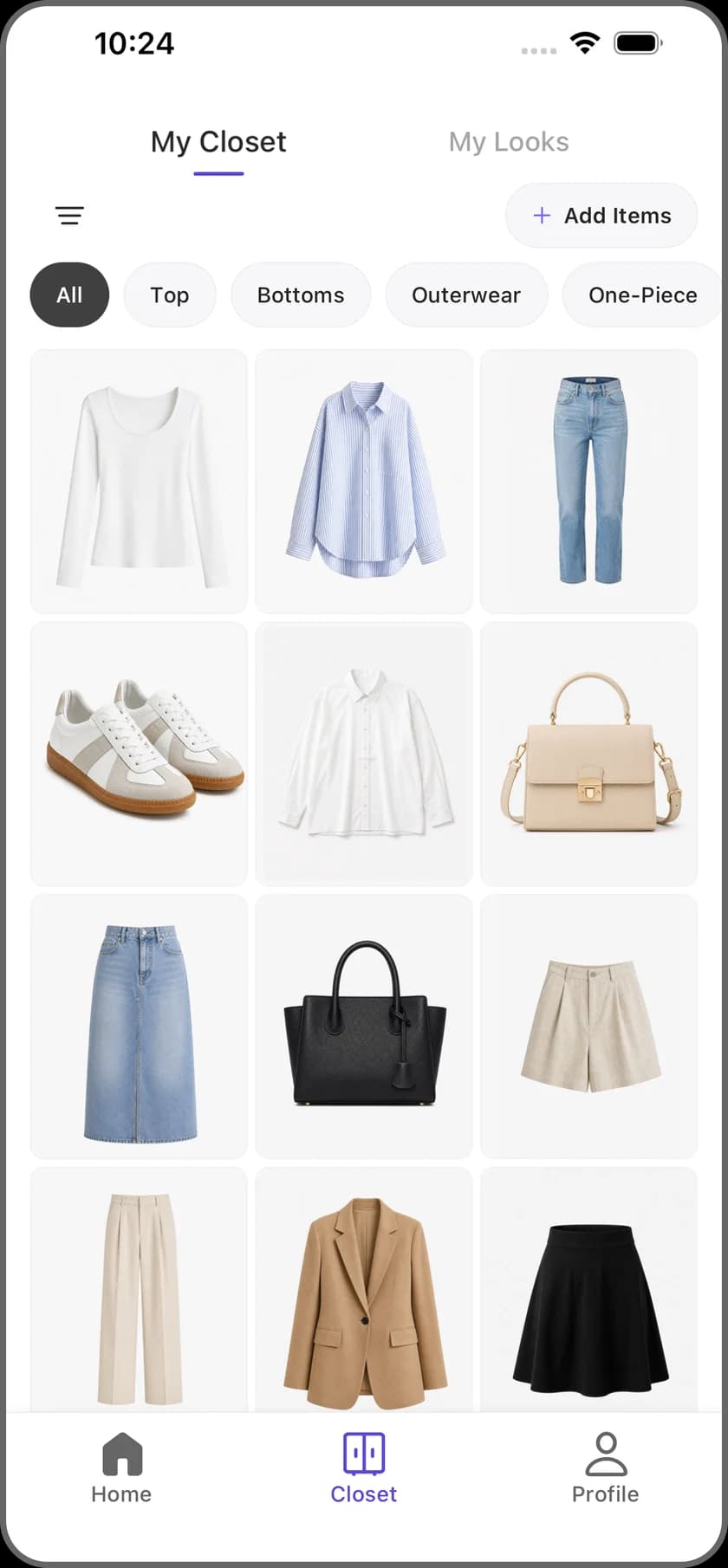
An illustration of OutfitMuse’s Closet interface, showing category filters and the Add Items button.
1. Choose a small collection you will use this week
Start with a question: Which clothes will I want to find when I get dressed tomorrow?
Five to ten items can make a manageable first session. That is an organizing suggestion, not an app upload limit. Here is an illustrative seven-item collection you could adapt to your own clothes:
| Group | Example pieces | Count |
|---|---|---|
| Tops | A white T-shirt and a striped shirt | 2 |
| Bottoms | Jeans and everyday pants | 2 |
| Outer layer | A jacket for your usual weather | 1 |
| Shoes | Sneakers and loafers | 2 pairs |
Choose pieces you already wear together. If you usually wear dresses, substitute those for some tops and bottoms. Leave special-occasion clothing for later unless you need it soon.
Your first collection is useful when it helps you choose an outfit, even if most of your wardrobe is still offline.
2. Photograph clothes for your digital closet
Photograph one item at a time. Lay it flat or hang it against a simple background, then check the photo before moving on.
- Keep the whole item in view. Include the sleeves, hem, and details that distinguish it from similar pieces.
- Use even light. Avoid strong shadows that hide the shape or make the color difficult to judge.
- Choose a contrasting background. A dark jacket is easier to see against a light surface than against another dark garment.
- Avoid color-changing filters. The photo should help you recognize what you actually own.
Zoom in briefly. Can you distinguish your two black shirts by their neckline, sleeve length, or texture? If not, adjust the lighting or angle and retake the photo. Clear, recognizable pictures matter more than professional styling.
You can also reuse photos you have already taken if they show the individual item clearly.
3. Add the photos to your digital closet
OutfitMuse is available for iPhone on the App Store and Android on Google Play in supported regions. Check availability and support for your device and store region. The steps below describe the product workflow.
After signing in to OutfitMuse, open Closet → Add Items → Photo Library to select your clothing photos. Alternatively, choose Take photo to photograph an item in the app.
If you already have items awaiting review, the upload entry may show N new items need review and open that list first. Review the pending items before starting another upload.
Use the regular Photo Library option for the individual photos described here. Follow the selection limit shown in your version of the app; your starter collection can span more than one batch.
Wait for processing, review the completed items, then use Add all N items, where N is the number of completed items shown, to confirm the addition. Starting an upload is not the same as saving its results to your closet.
Return to Closet and check that the items appear before moving on to another batch.
4. Organize your clothes by category, season, and occasion
Open an item and compare its picture and details with the clothing in front of you. Check the category first, then review the season and occasion labels you intend to use.
For example, an everyday jacket and a winter coat may share a broad clothing category but suit different weather. Choose labels that reflect when you would actually wear each piece.
Correct inaccurate details in the item details. AI-assisted recognition can need review; suggested labels are a starting point, not something you have to accept.
Return to your closet and browse a category. Tap the filter icon to open Filter, select a relevant season or occasion, and choose View items. Check whether the piece you expected is visible and recognizable at thumbnail size.
5. Use the collection to choose your next outfit
Try finding a top, a bottom, and shoes for tomorrow, or a dress and shoes if that suits your wardrobe. Browse the photos together and check whether you can identify the actual clothes you want to wear.
If a useful piece is missing from your collection, add it next. If two thumbnails are difficult to tell apart, retake the unclear photo. These small checks tell you what to improve before you photograph more clothes.
You do not need to generate an AI outfit to finish setting up your digital closet.
Check your first collection before adding more
Try this short check with the clothes in front of you. You are testing whether the collection helps you find something you own, not how quickly you can fill a screen.
| Check | What a useful result looks like | If it does not work |
|---|---|---|
| Recognize the item | You can tell which real garment the photo represents | Retake a clearer photo; show the full shape and distinguishing details |
| Confirm it was saved | It appears in the closet after processing, review and confirmation | Check pending items and any error message before uploading it again |
| Find it by category | The garment appears in the category you expect | Review its item details and correct the category where needed |
| Find it with a filter | A season or occasion filter gives the result you intended | Compare the saved labels with the filter; clear filters to check the full collection |
| Use it for a real decision | You can identify a piece you want to wear tomorrow | Add a missing everyday piece or improve an unclear image before expanding the inventory |
Record the result in any notes app or on paper:
- Item: the real piece you are checking.
- Found again: yes, or what stopped you.
- Correction needed: photo, category, season, occasion, or none.
- Next use: the day or situation when you want to wear it.
This is a manual review checklist, not a claim that OutfitMuse has a checklist or wear-tracking feature. Finish one small collection that you can use before investing time in a complete wardrobe inventory.
If an item does not appear where you expect
Check these points before uploading the same photo again:
- The active view: return to All and clear season or occasion filters. An item may be outside the category or filter you are viewing.
- The item's labels: if you find it in the full collection but not in a filtered view, open its details and check the category, season, and occasion.
- The upload step: check whether processing finished and whether you confirmed the completed items. An upload or processing message alone does not establish that an item was saved.
If the app shows an error, follow that message rather than repeatedly adding duplicates.
Keep your digital wardrobe useful
Add clothes when they return to regular use, such as a coat at the start of colder weather. Replace unclear photos as you notice them. You do not need to finish a complete inventory before using what you have already organized.
Do I need a wardrobe app to get started?
No. A dedicated photo album can be a simple visual inventory. If you want to organize clothes by category and filter them by season or occasion, the OutfitMuse workflow above covers those steps.
Will a digital closet generate outfits using only my clothes?
Not necessarily. Recording clothes and generating outfit suggestions are separate features. OutfitMuse's item-styling results may include recommended pieces you do not own, so check each suggestion before treating it as an outfit available in your closet. Learn more about outfit ideas built around one item.
For a practical use for your first collection, try this manual five-day outfit plan. Before adding personal photos, review the photo privacy checklist.